Onboarding / Screen guide
See the actual onboarding experience
From the participant's first screen to the workspace session list. These are screenshots of the real application, not editable examples or a separate demo interface.
All flows, accounts and session results shown here are synthetic. No identity checks, customer changes or webhook deliveries were performed. Screens are in English. Open any image to inspect the full-size screenshot.
The participant journey
Actual phone-sized participant screens. These show what your configuration changes for the person completing onboarding.
 Open full size
Participant screen
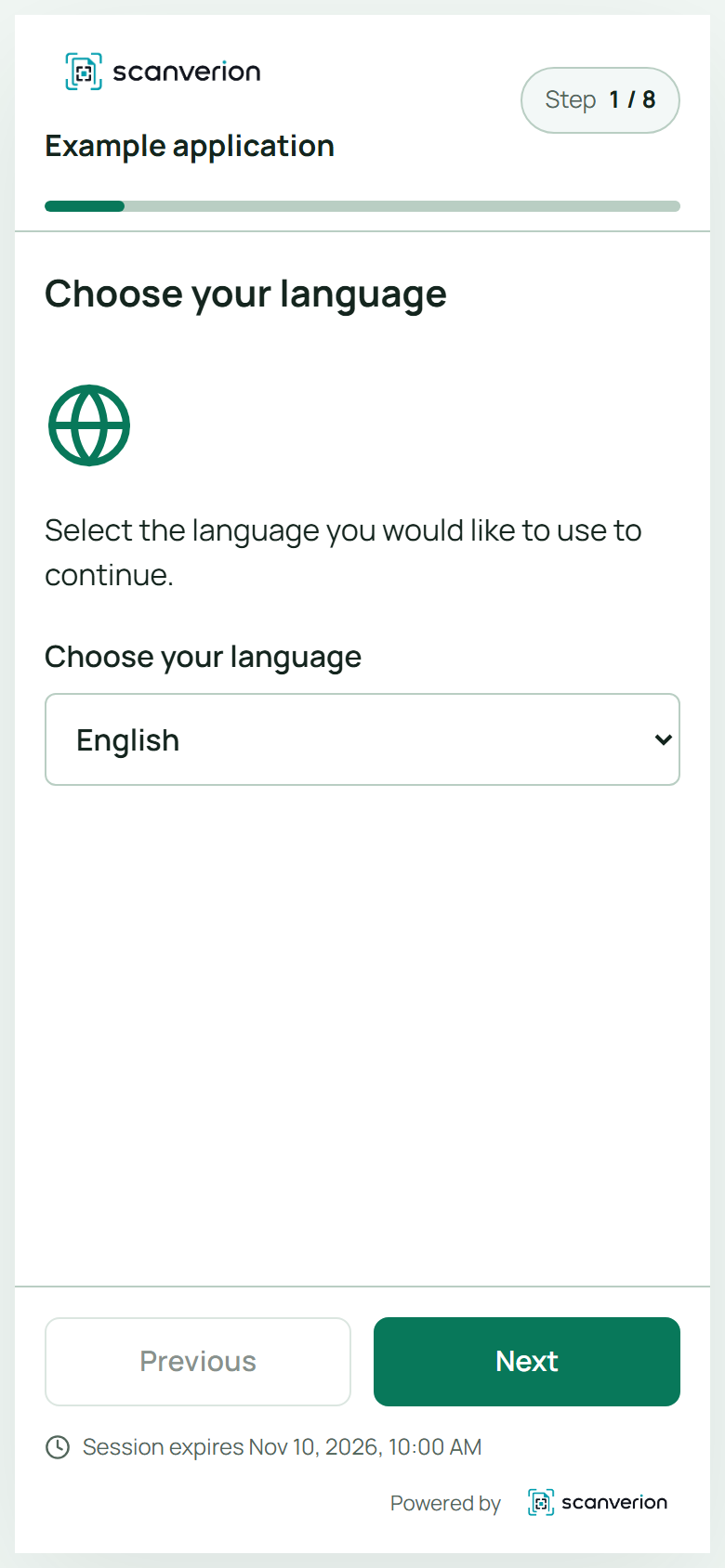
Choose a language
Language mode: Selection. English, German and Slovak are enabled.
The participant chooses a supported language before continuing. Fixed and Device modes omit this choice; translated flow content still needs to be configured.
Read the configuration guide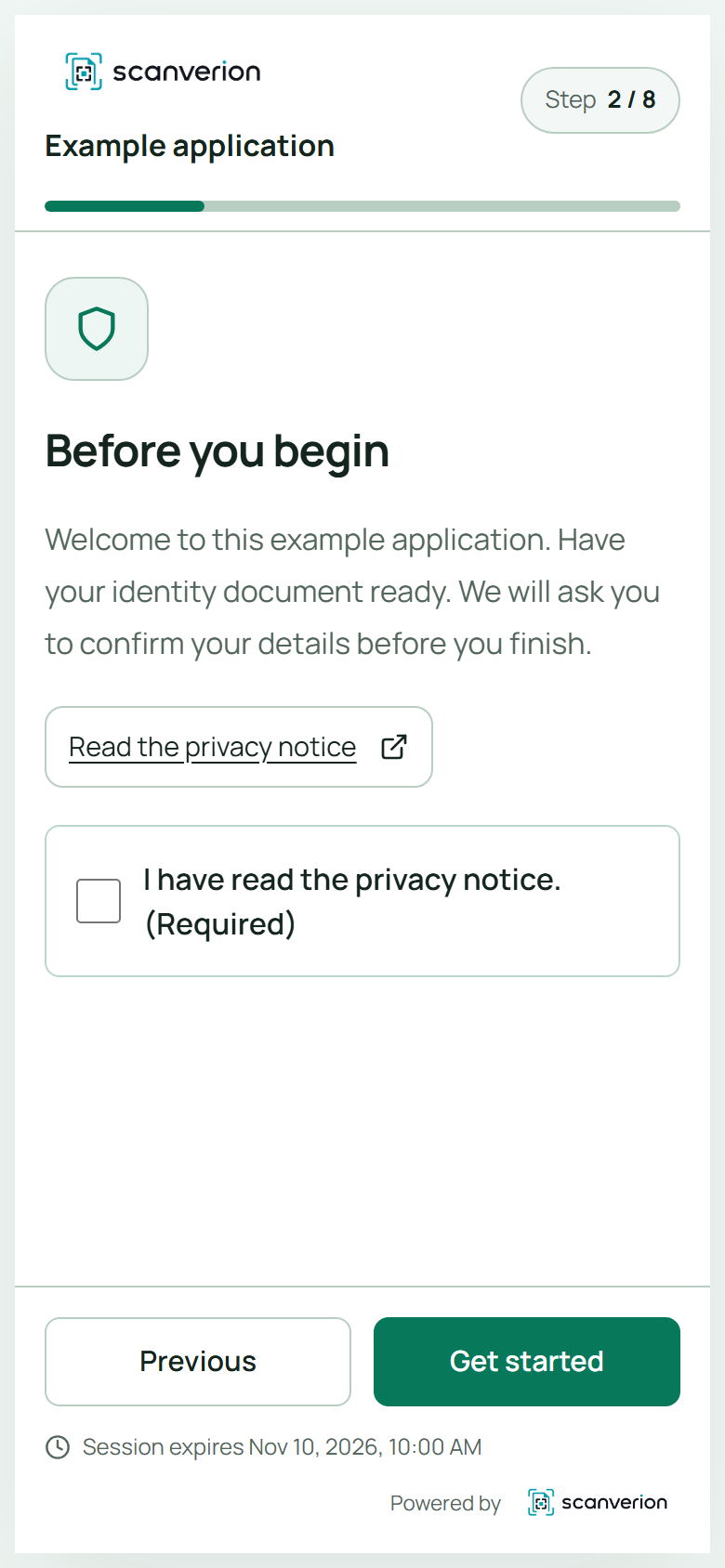 Open full size
Participant screen
Introduction and privacy
A notice step, a required acknowledgement and a custom page title.
The participant sees your introduction inside the real journey. The acknowledgement must be selected before Get started can continue.
Read the configuration guide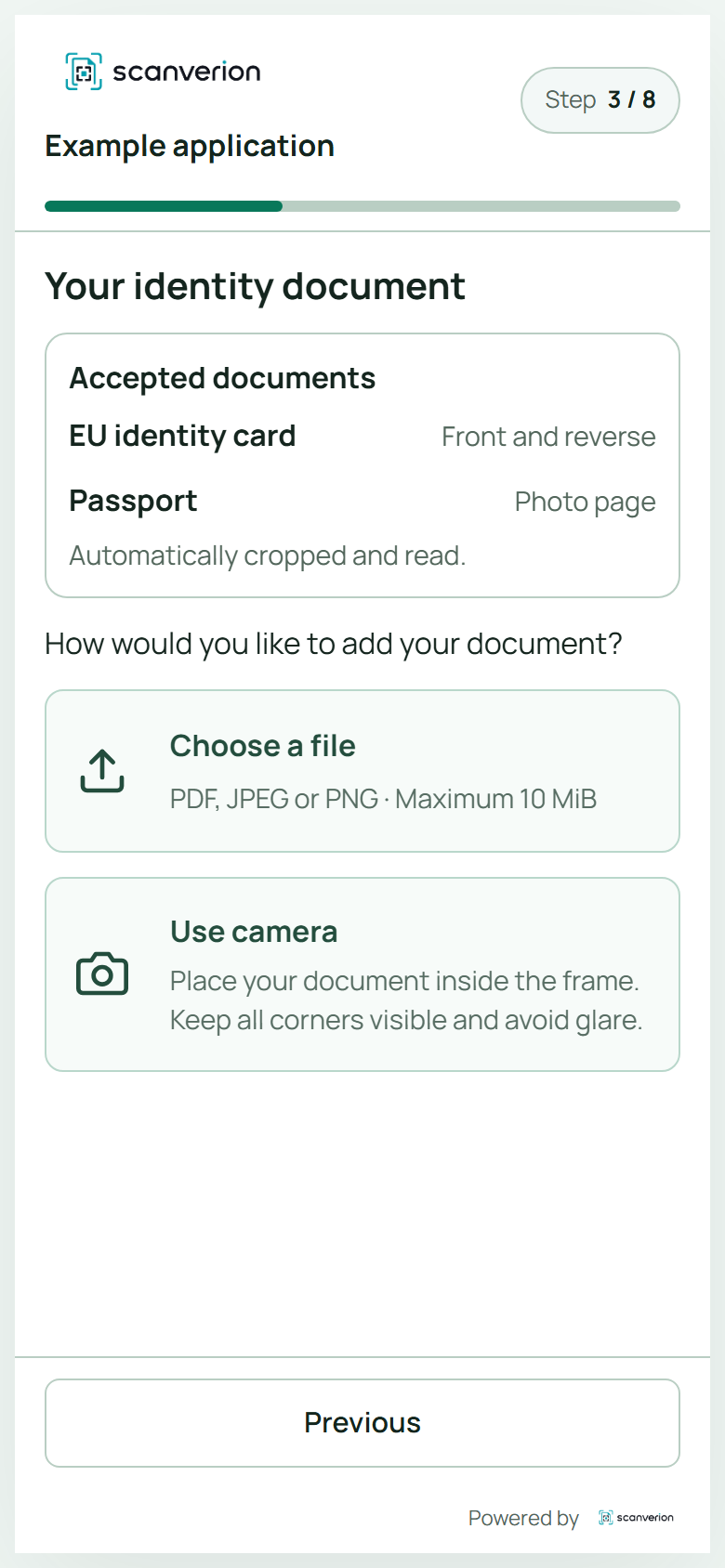 Open full size
Participant screen
Provide an identity document
FileOrCamera capture; identity cards require a back image, passports do not.
Allowed document types determine the choices and required sides. Camera-only and upload-only policies change the available capture actions.
Read the configuration guide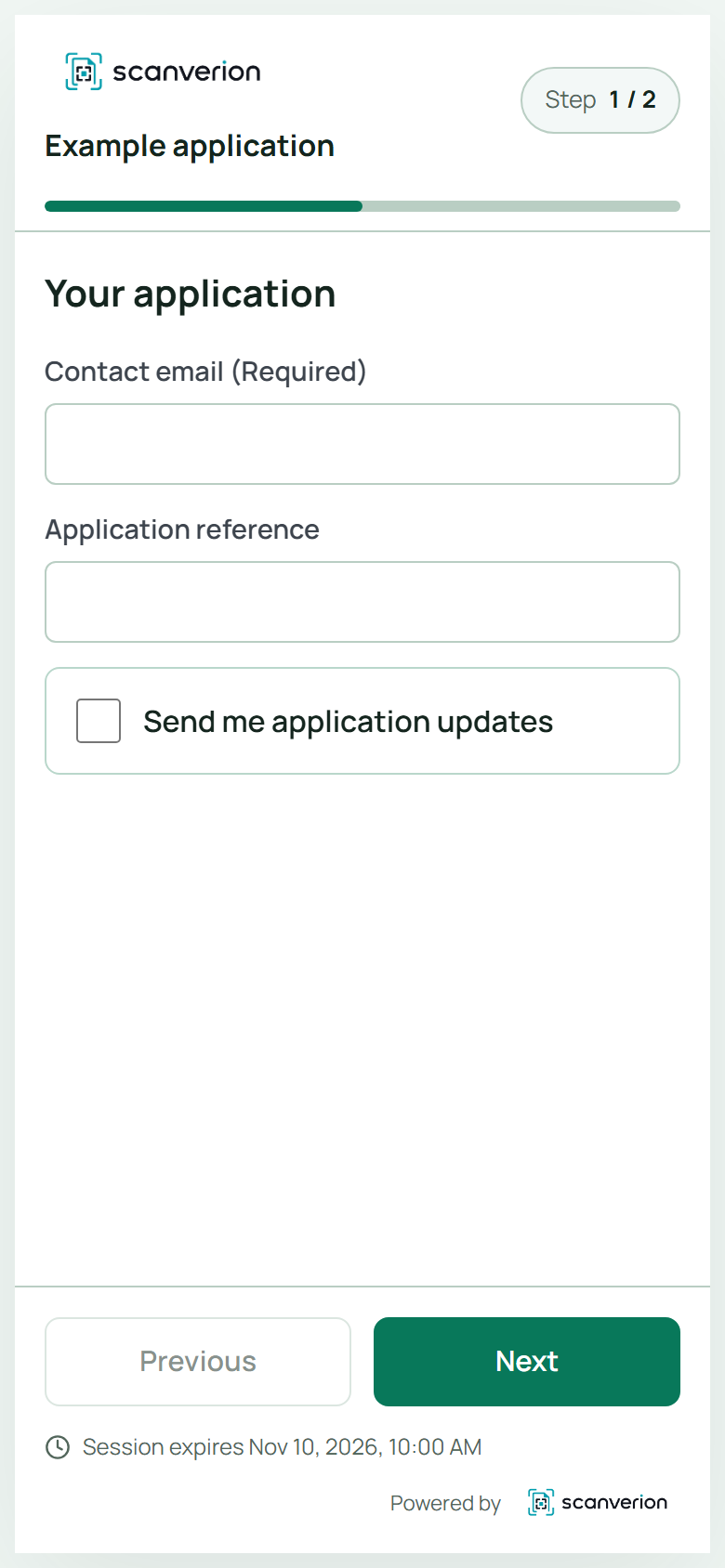 Open full size
Participant screen
Collect application details
A ParticipantForm step with Email, Text and Checkbox fields.
This form-only recipe collects information without document processing. In a combined journey, place it alongside the verification steps and set each field's required status.
Read the configuration guide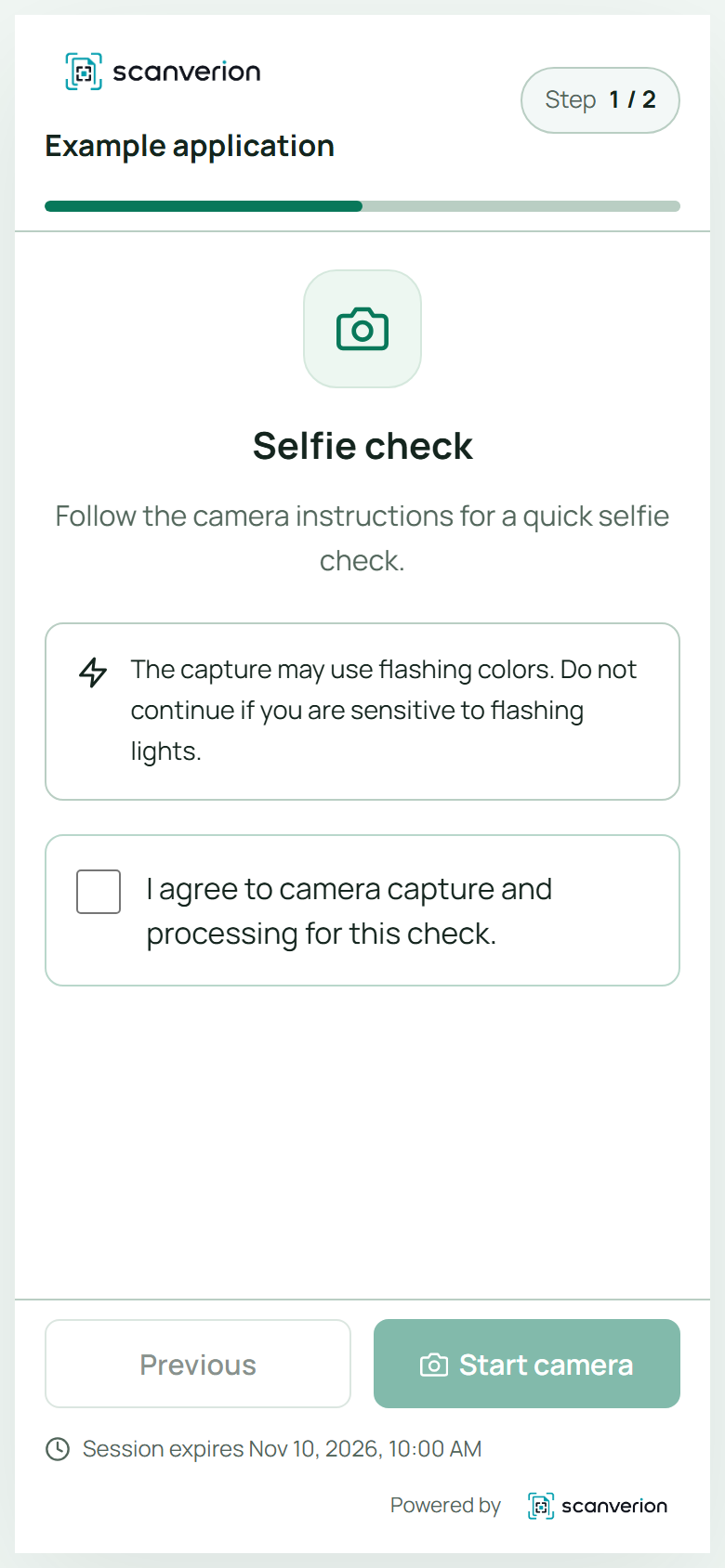 Open full size
Participant screen
Prepare for a liveness check
A required Liveness step.
The participant receives preparation instructions before starting the camera session. This screenshot stops before camera access; no biometric provider was called.
Read the configuration guideHow the journey ends
The closing screen follows the session's actual state and review requirements. These results are simulated fixtures, not completed identity checks.
 Open full size
Participant screen
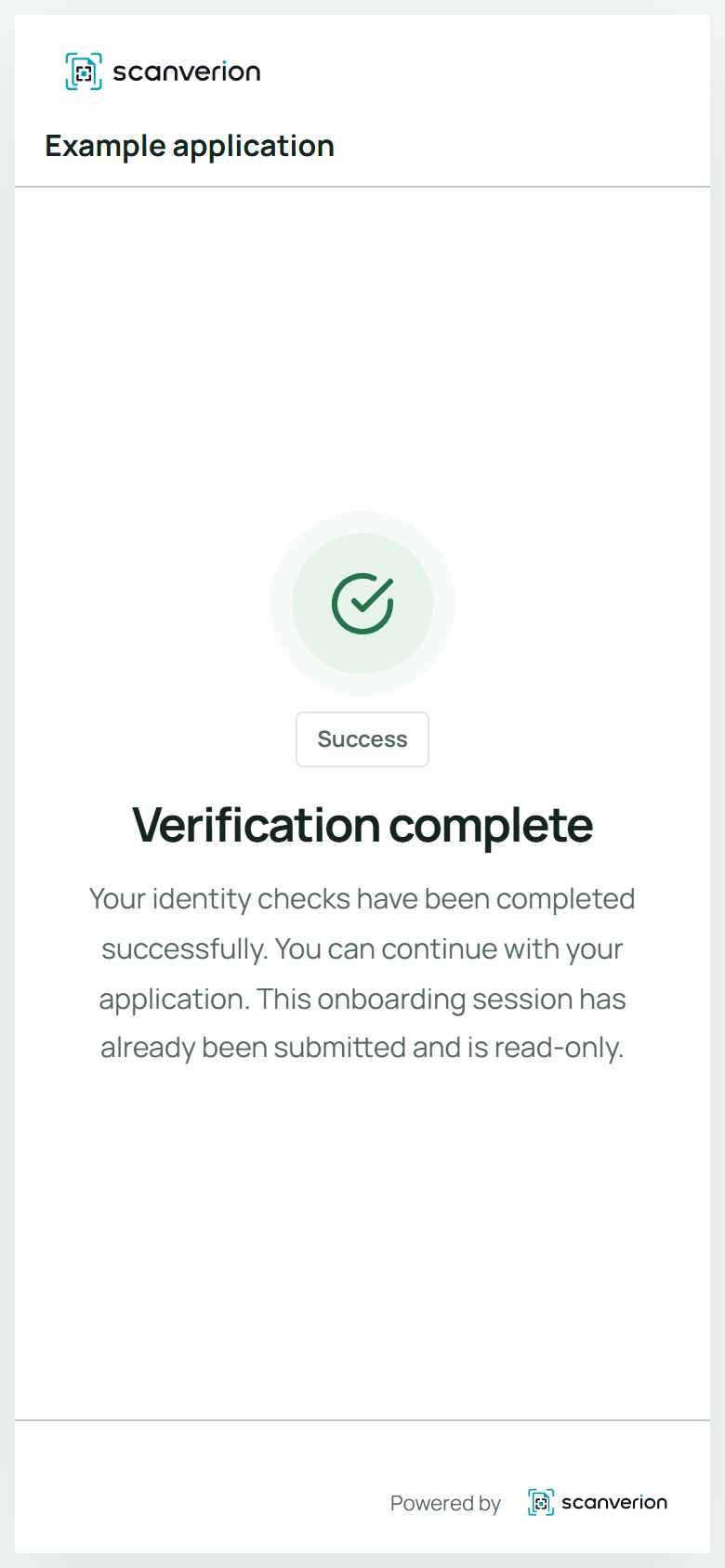
Completed successfully
Submitted with reviewRequired: false.
A clean submission can finish successfully without human approval. A configured success return URL offers the route back to your application.
Read the configuration guide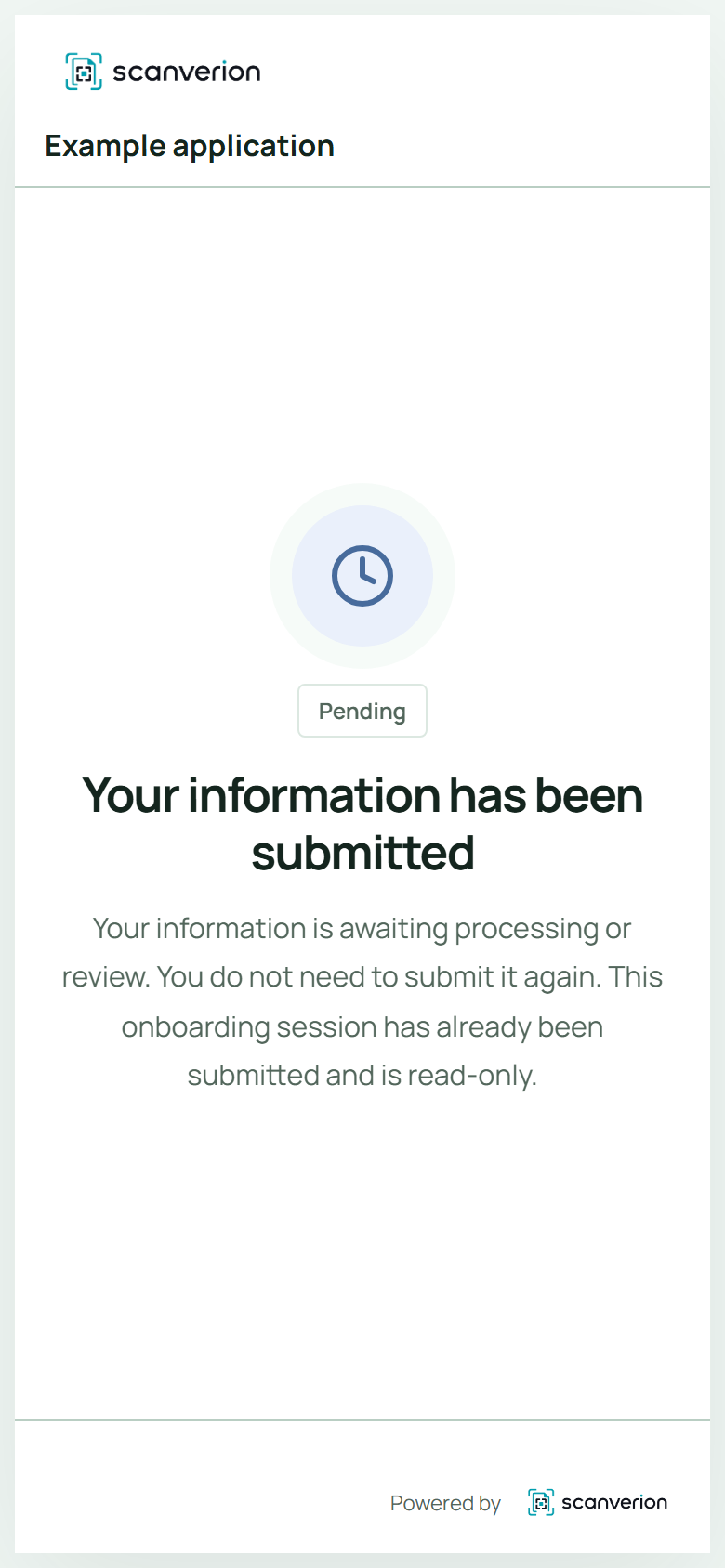 Open full size
Participant screen
Awaiting a review
Submitted with reviewRequired: true and no review decision.
The participant is told that a review is needed, not that verification succeeded. Use the pending return destination and await the backend decision.
Read the configuration guide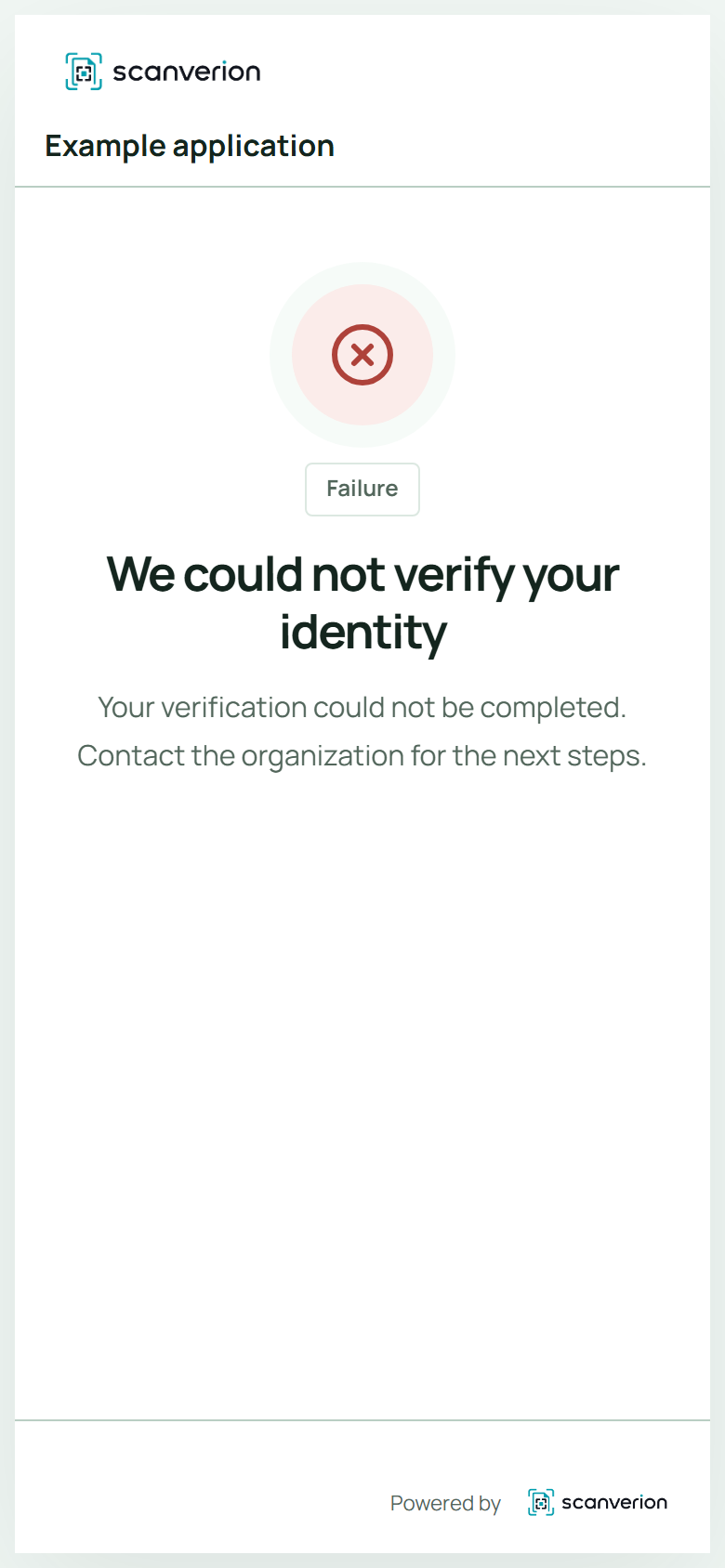 Open full size
Participant screen
Unable to complete
A Failed session.
The failure presentation does not expose reviewer reasons or numeric verification diagnostics. Changing its wording cannot change the server decision.
Read the configuration guide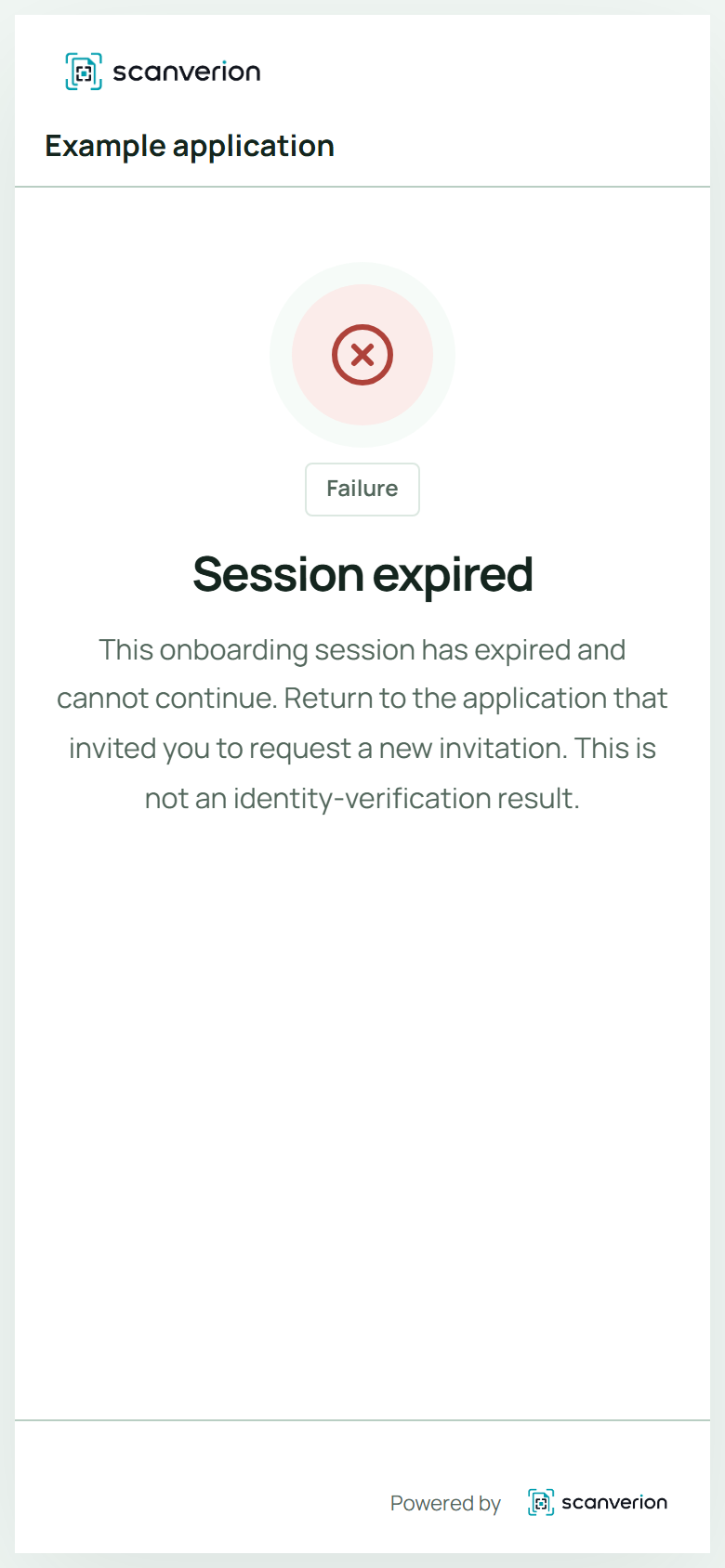 Open full size
Participant screen
Session expired
The session's expiry deadline has passed.
The form is no longer available for participant operations. Issue a new invitation if another attempt is appropriate; do not extend an expired browser session locally.
Read the configuration guideConfiguration and operations
Actual workspace screens, captured with a synthetic Sandbox flow. The application navigation and surrounding workflow are included for context.
 Open full size
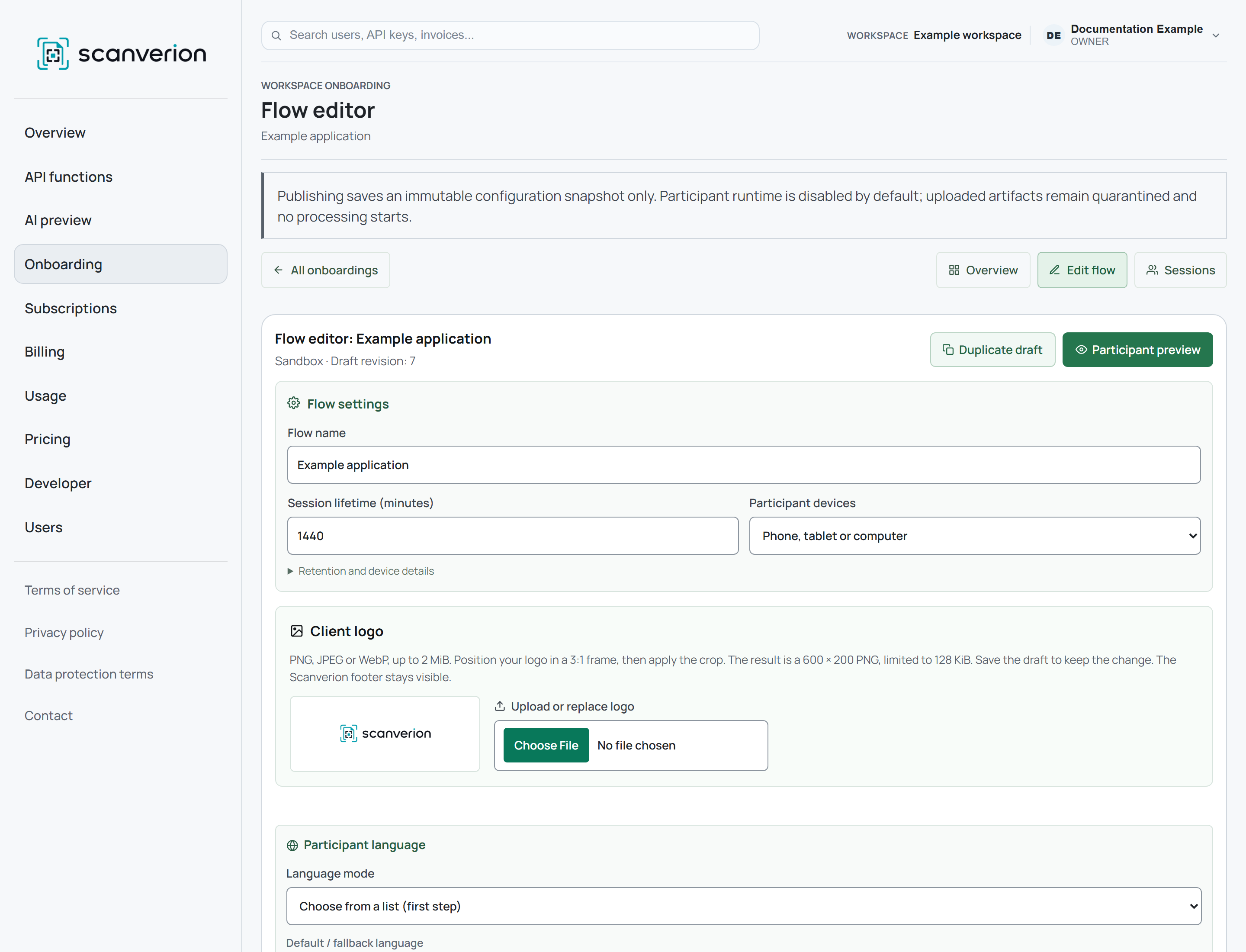
Workspace screen
Set the flow-level policy
A synthetic Sandbox draft with a 1,440-minute lifetime and all device types allowed.
Set the session lifetime and device policy, then save and publish deliberately. Editing the draft does not alter the definition already assigned to an existing session.
Read the configuration guide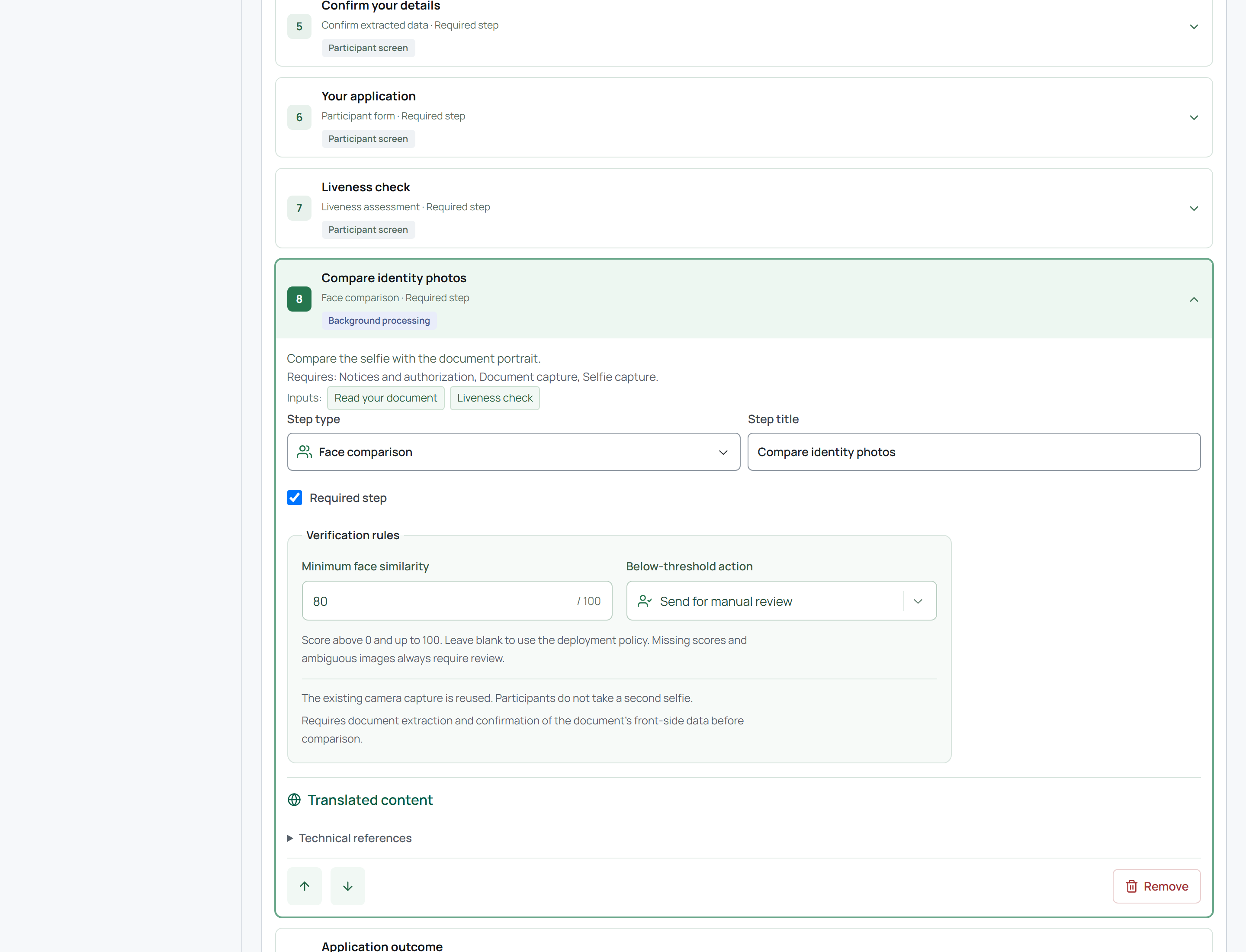 Open full size
Workspace screen
Configure verification in context
Face comparison uses an illustrative similarity threshold of 80 and Review below threshold.
A completed below-threshold result needs review only when the flow permits manual review. Liveness confidence is a separate setting; these numbers are not production recommendations.
Read the configuration guide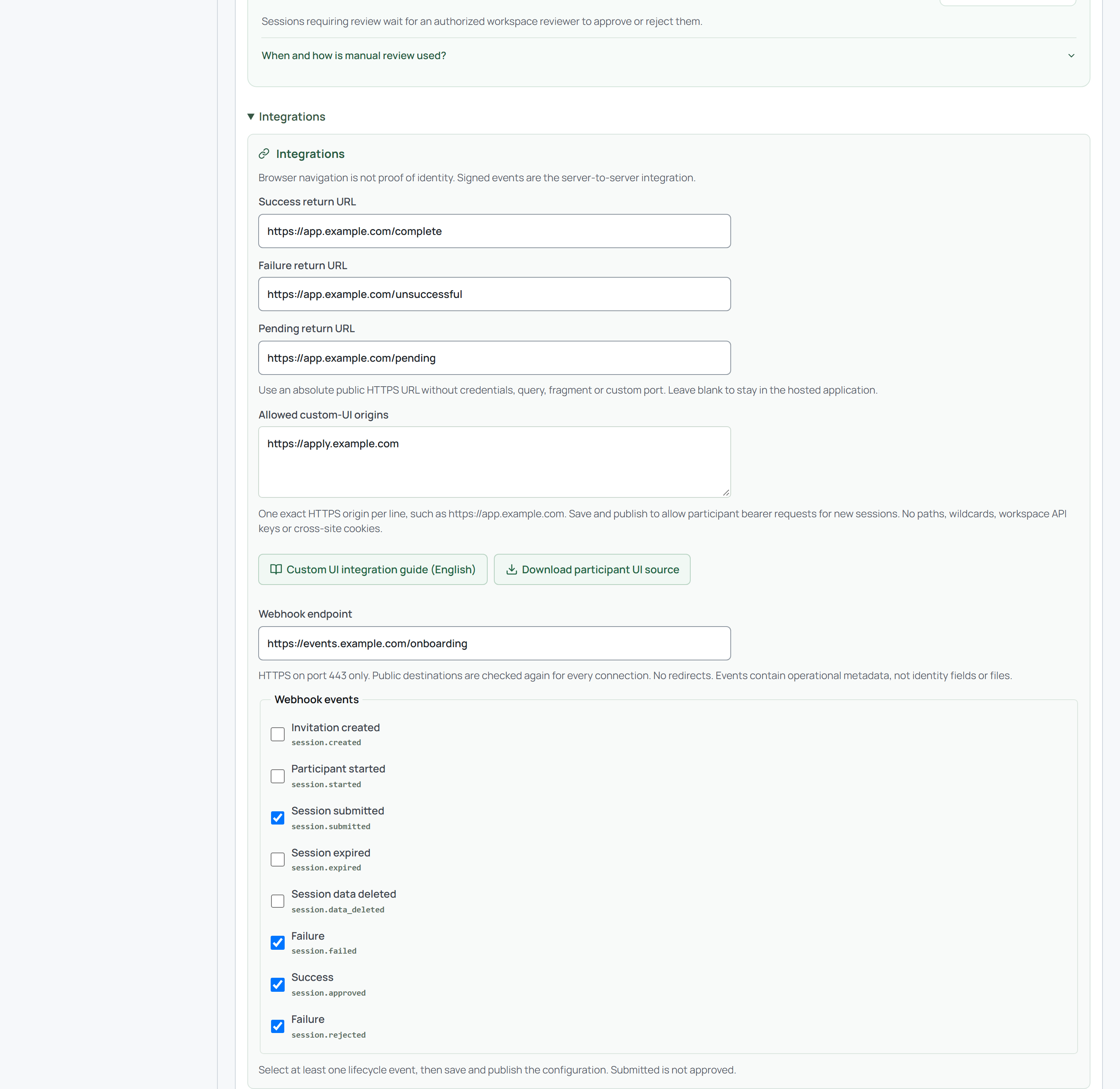 Open full size
Workspace screen
Connect your application
Separate success, failure and pending returns; an allowed browser origin; selected webhook events.
Returns navigate the browser. CORS authorizes an allowed custom browser origin, not your backend credentials. Webhooks deliver signed backend notifications separately.
Read the configuration guide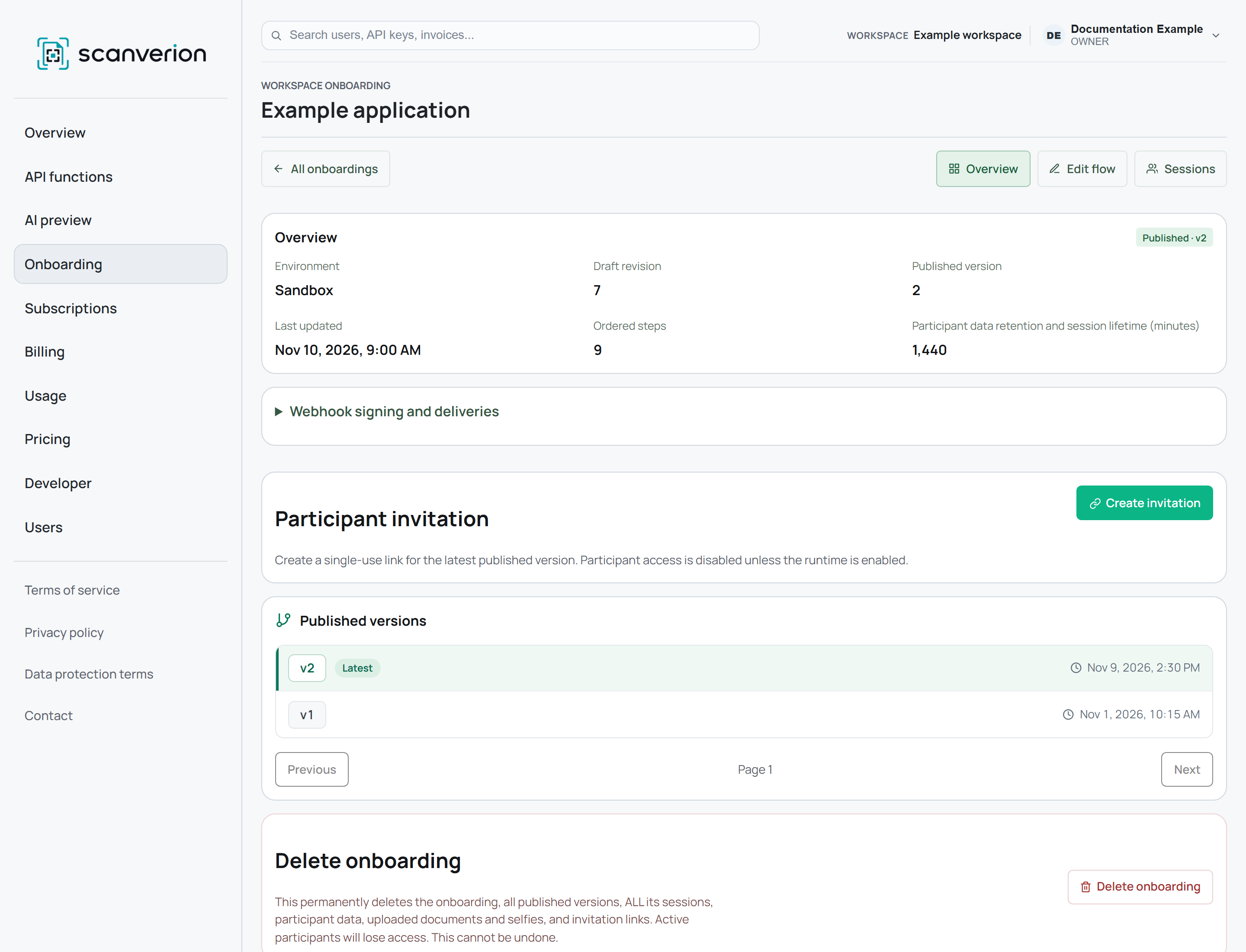 Open full size
Workspace screen
Understand draft and published versions
Draft revision 7; published versions 1 and 2.
Revision numbers track draft edits. Published version numbers identify immutable definitions used by sessions; publishing a later version does not migrate earlier sessions.
Read the configuration guide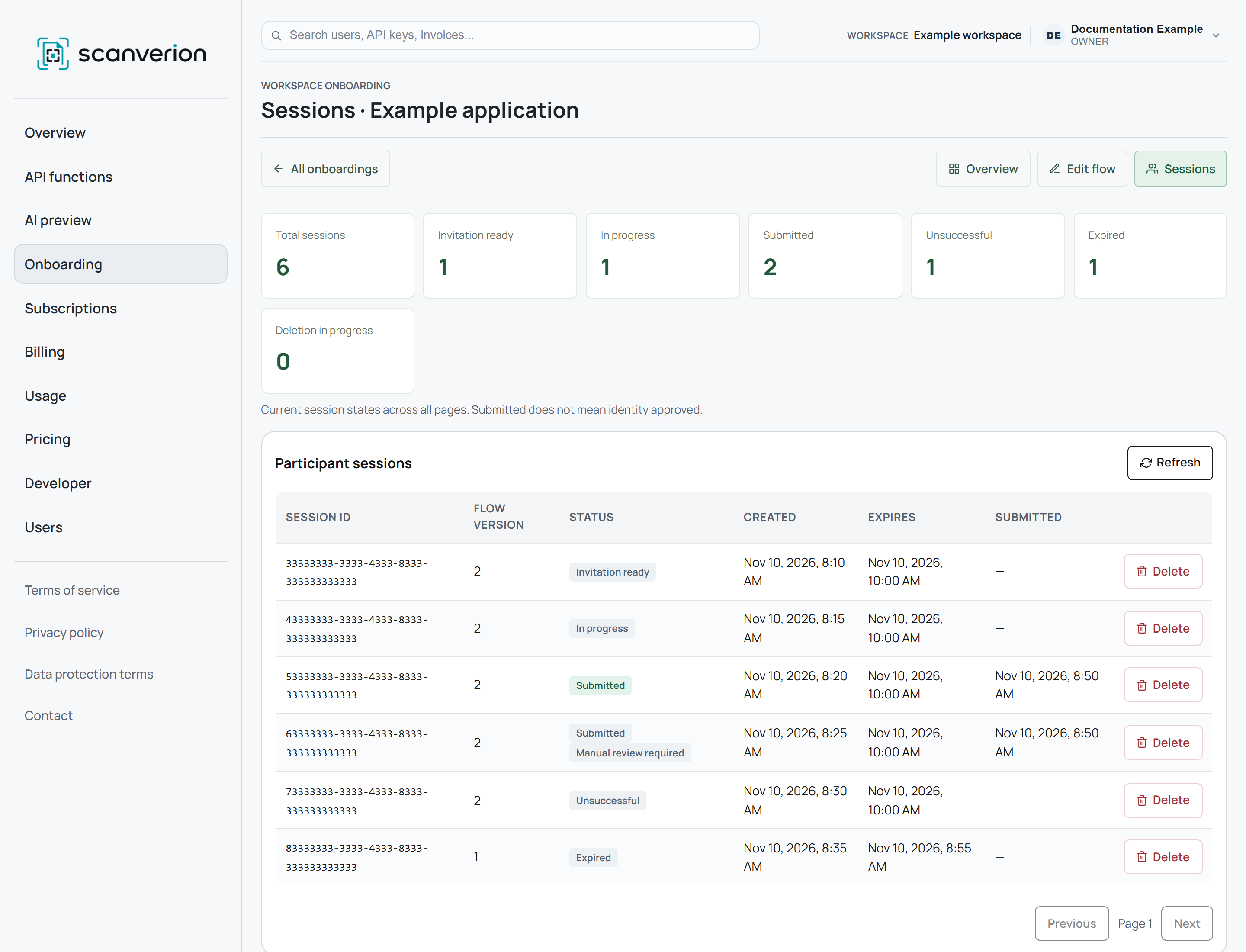 Open full size
Workspace screen
Monitor the session lifecycle
Six synthetic sessions across lifecycle and review states.
Use the summary and session rows to monitor work. Submitted alone is not an approval: inspect review requirements and decisions before treating a session as successful.
Read the configuration guide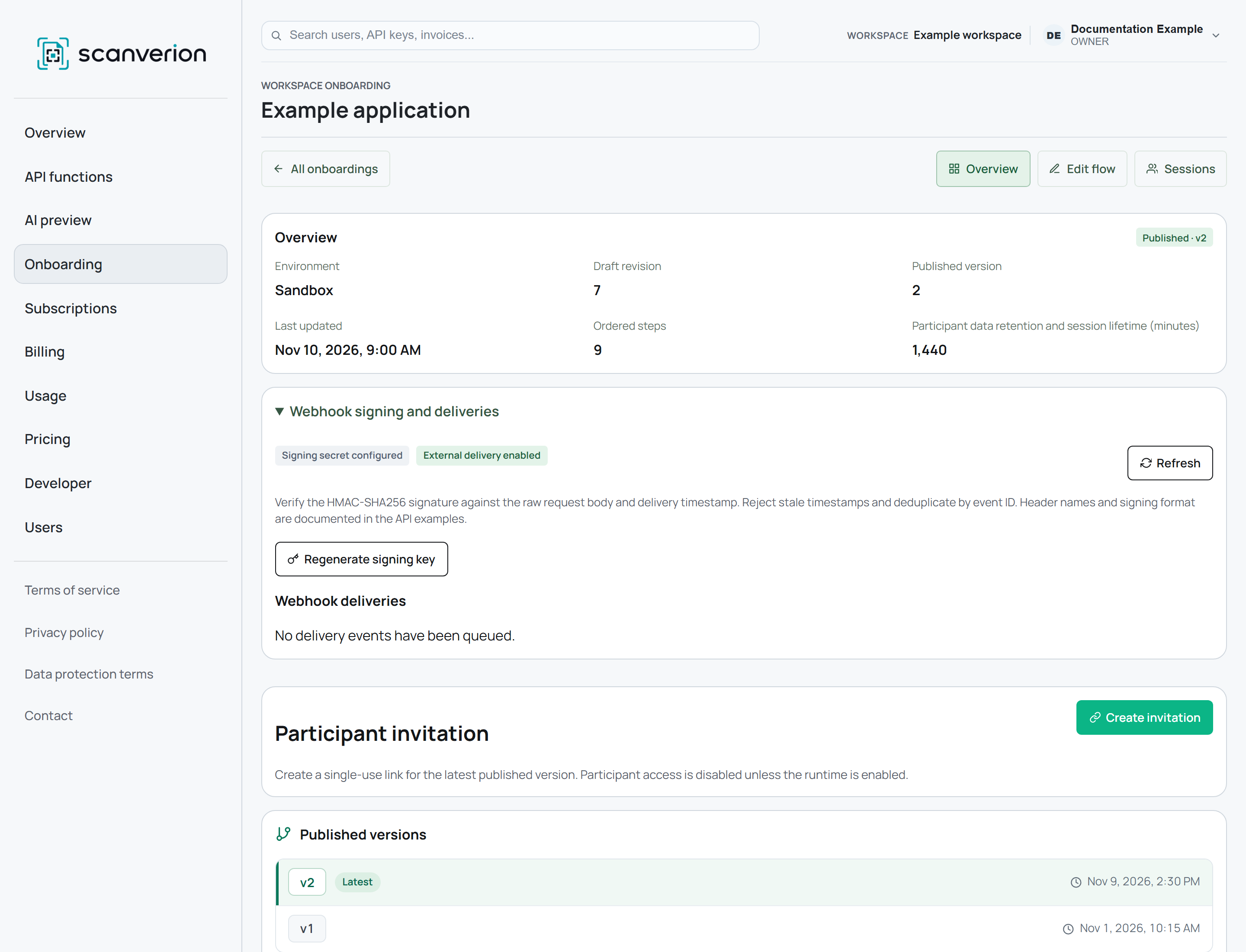 Open full size
Workspace screen
Check webhook readiness
A synthetic configured signing key and enabled external delivery.
Check readiness and delivery history here. No signing secret is displayed or generated in this illustration, and an empty history is not proof that your receiver works.
Read the configuration guide